The Privacy Settings Worth Changing on Every Device You Own
Most of us spend far more time choosing a wallpaper than reviewing the privacy settings on a new device.
By Dion Spears on August 18, 2026
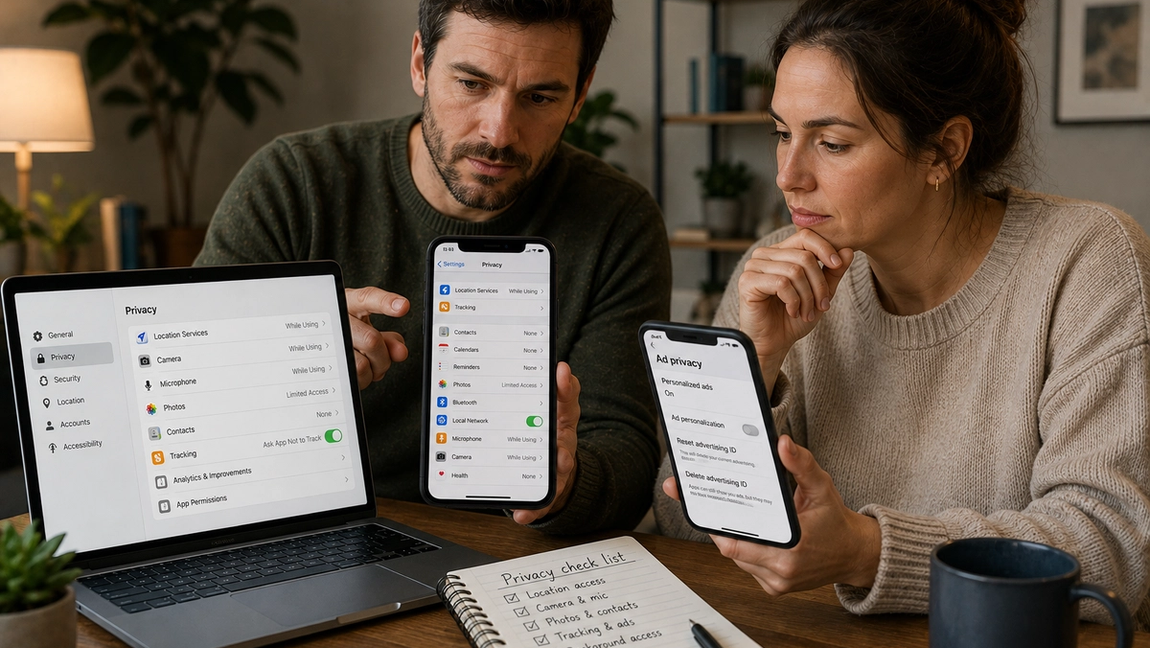
Most of us spend far more time choosing a wallpaper than reviewing the privacy settings on a new device. We sign in, install our favorite apps, allow a few permissions to make everything work, and move on. Months later, dozens of apps may have access to our location, microphone, photos, contacts, or other information without us remembering why we granted that access in the first place.
Privacy settings will not make you invisible online, and there is no single switch that prevents every form of data collection. But a few practical changes can significantly reduce unnecessary access to your information. The exact menus differ between phones, computers, tablets, browsers, and smart devices, but the underlying principles are remarkably similar.
You do not need to become a cybersecurity expert. You simply need to become a little more selective about what your devices and apps are allowed to know.
Review which apps can access your location
Location is one of the most useful permissions on a modern device. Maps need it to provide directions, weather apps can use it for local forecasts, and ride-sharing services need to know where to pick you up. But that does not mean every app needs continuous access to where you are.
Go through your device’s location permissions and look for apps set to access your location all the time. Ask whether that access is actually necessary. In many cases, choosing an option such as “while using the app” provides the functionality you need without allowing continuous background access.
Some devices also let you provide an approximate rather than precise location. That can be enough for services that need to know your general area but do not require your exact position.
The goal is not to disable location completely. It is to give precise, continuous access only to services that have a legitimate reason to need it.
Check your camera and microphone permissions
Apps frequently request access to cameras and microphones for perfectly reasonable features. A video-calling app obviously needs both. A messaging app may need them when you record voice notes or take photos.
Other requests deserve more scrutiny.
Review which apps currently have camera and microphone permission and remove access from anything that does not clearly need it. If an app later requires the permission for a feature you intentionally use, you can usually grant it again.
Modern operating systems often display an indicator when the camera or microphone is active. Pay attention to those indicators, particularly if they appear when you are not intentionally using a feature that requires them.
Permissions do not have to be permanent decisions. Treat them as access you can grant when useful and remove when it no longer makes sense.
Limit access to your photos and contacts
Giving an app access to your photo library can sometimes mean giving it access to years of personal images. Similarly, granting contact access may expose information about hundreds of people who never chose to use that particular service.
Many devices now allow more granular control. Instead of giving an app access to your entire photo library, you may be able to select only the photos you want to upload. When that option is available, it is worth using.
Be similarly cautious with contact permissions. A social or communication app may offer to find everyone you know by uploading or syncing your contacts, but convenience comes with a privacy tradeoff. If you do not need the feature, you do not necessarily need to grant the permission.
A useful default is to start with less access and expand it only when a feature genuinely requires more.
Reduce unnecessary ad tracking
Personalized advertising often relies on information about your activity, interests, and interactions. Operating systems, browsers, websites, and individual apps may provide settings that limit some forms of tracking or ad personalization.
Look for privacy settings related to personalized advertising, tracking, advertising IDs, or cross-app activity. Depending on the device and platform, you may be able to restrict apps from tracking activity across other companies’ services, reset or limit advertising identifiers, or turn off personalized ads.
These settings do not eliminate advertising, and they do not necessarily prevent every form of data collection. You will probably still see ads. The difference is that you may reduce the amount of behavioral information used to personalize them.
Your browser deserves attention too. Review settings related to third-party cookies, tracking protection, and site permissions. Modern browsers increasingly provide tools to limit cross-site tracking without requiring you to abandon the web.
Pay attention to lock-screen privacy
Your phone can reveal a surprising amount of information while it is locked.
Message previews, email subjects, verification codes, calendar reminders, and other notifications may appear directly on the lock screen. That is convenient when you are the person looking at it, but it also means someone sitting beside your phone may be able to read information without unlocking the device.
Consider changing notification settings so sensitive content is hidden until the device is unlocked. You can usually choose whether previews appear always, only after authentication, or never.
This is particularly useful for messaging, email, banking, and authentication apps.
Your lock screen should provide useful information without becoming a public display of your private conversations.
Review background access
Some apps continue performing tasks when you are not actively using them. Background access can support useful functions such as syncing files, updating information, or receiving messages, but not every app needs the same level of freedom.
Review which applications can refresh, run, or use data in the background. If an app does not need to stay continuously updated, restricting background activity can reduce unnecessary data access and may also help battery life.
The same principle applies to Bluetooth and local-network permissions. Apps may request access to nearby devices or your home network for legitimate reasons, but those permissions should make sense for what the app actually does.
If a calculator app wants access to your local network, for example, it is reasonable to wonder why.
Check the privacy settings inside your accounts
Device settings are only one layer of privacy. Many services maintain their own settings within your account.
Review major accounts you use regularly, particularly email, social media, search, cloud storage, and other services containing large amounts of personal information. Look for controls covering activity history, search history, location history, profile visibility, personalized advertising, and data sharing.
Social networks deserve particular attention because their default settings may allow more people to see your information than you realize. Check who can view your posts, find you through your phone number or email address, tag you, or see information on your profile.
These settings can change over time, so a privacy configuration you chose several years ago may not reflect the options available today.
Don’t forget smart TVs and connected devices
Phones and laptops receive most of the privacy attention, but they are no longer the only connected devices in our homes.
Smart TVs, speakers, watches, fitness trackers, doorbells, cameras, and other connected products may collect information about how they are used. Some include microphones, location features, usage analytics, or personalized advertising settings.
When setting up a new device, avoid automatically accepting every optional data-sharing feature. Look for settings related to diagnostics, analytics, voice recordings, advertising, and usage data.
For devices with cameras or microphones, consider whether those features need to remain active continuously. Physical camera covers or hardware microphone switches can provide an additional layer of control when available.
The smarter your home becomes, the more devices deserve a privacy check.
Make privacy reviews a regular habit
Privacy is not something you configure once and permanently finish. You install new apps, replace devices, create accounts, and accept permissions throughout the year.
Every few months, spend ten minutes reviewing the basics. Check location access, camera and microphone permissions, photo access, tracking settings, and apps you no longer use. Delete software you do not need and revoke permissions that no longer make sense.
You do not have to choose between using modern technology and having privacy. The more realistic goal is to avoid giving away information simply because a default setting asked for it.
Every permission should answer a basic question: does this app or device actually need this information to do something I want it to do?
If the answer is no, turning the setting off is usually a good place to start.